
Payroll Forecasting That Grows With Your Business
From a quick growth-rate estimate to employee-by-employee payroll tax modeling, PlanGuru gives you the flexibility to budget labor costs at whatever level of detail your business needs.
Payroll Planning, Your Way
Every business approaches payroll forecasting differently. PlanGuru is built to match your level of complexity, not force one on you.
High-Level Projections
Custom Headcount Calculations
Employee-Level Detail
Automated Payroll Tax Calculations
Manually tracking wage limits and tax rates across federal and state jurisdictions is tedious and error-prone. PlanGuru automates it.
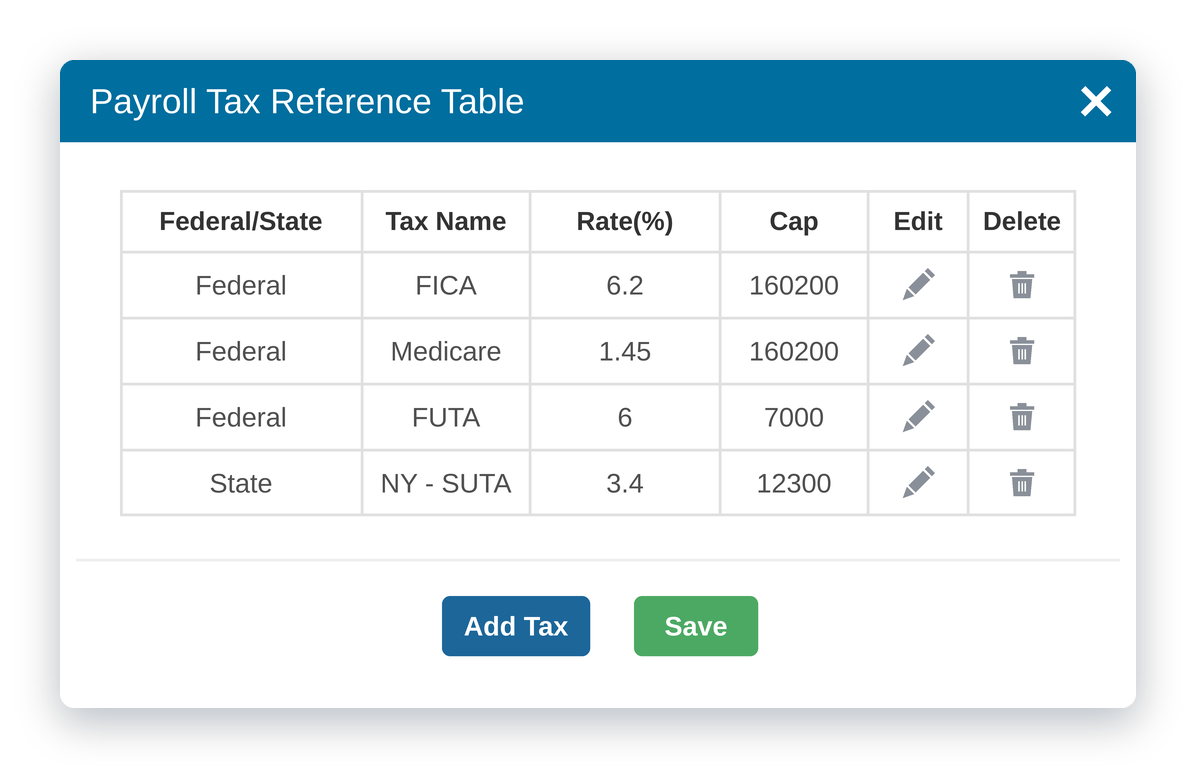
- Set up your tax table once. Define federal taxes (FICA, Medicare, Federal Unemployment) and state rates with wage limits built in. They apply across every project and scenario in your company.
- Apply taxes automatically. Link a tax to an employee’s salary line and PlanGuru calculates it in real time, stopping at the wage limit.
- Multi-state ready. Add as many state rates as you need, or simplify with a blended rate.
Scale Without the Manual Rework
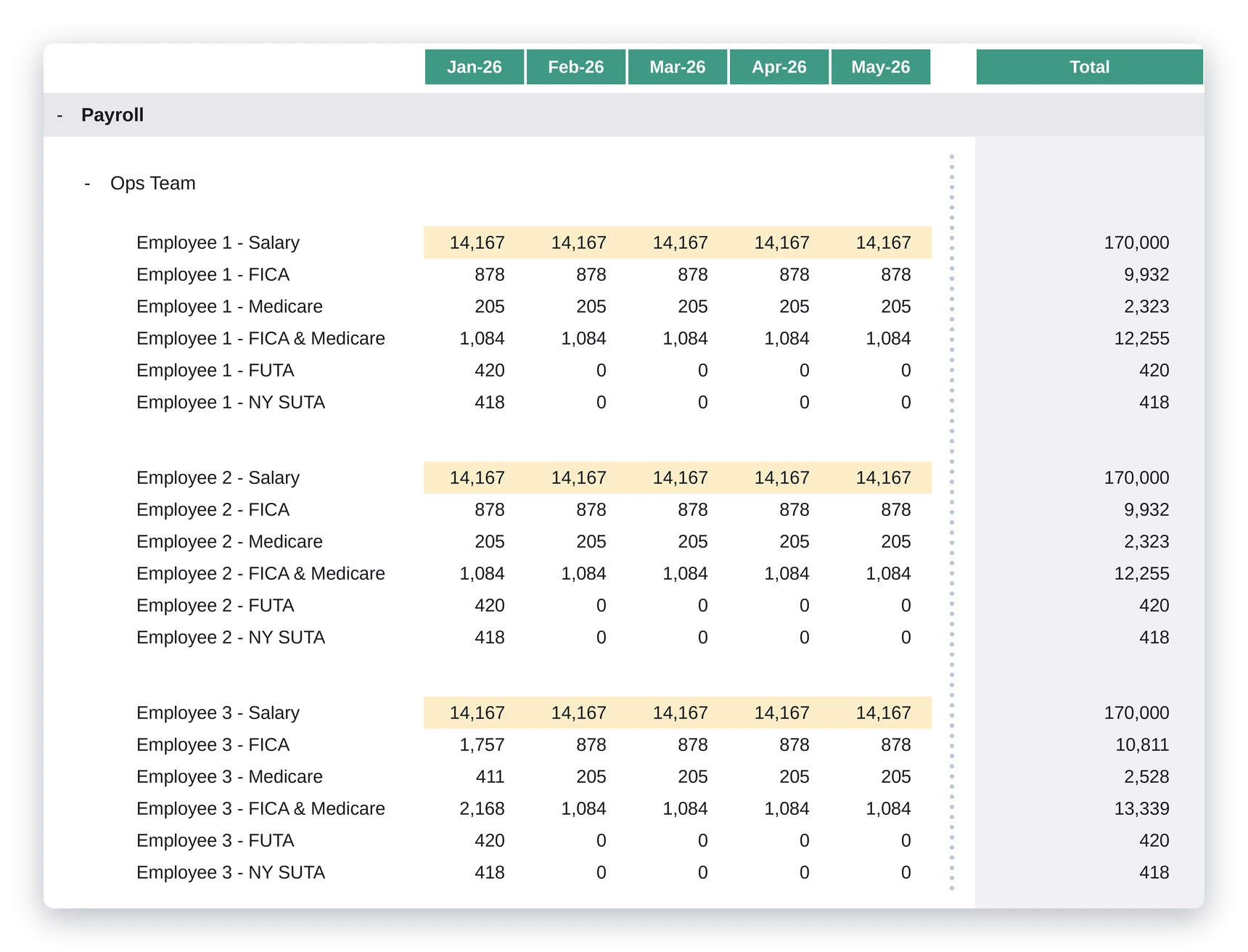
Modeling payroll for one employee is easy. Modeling it for fifty shouldn’t mean fifty times the work. Smart Grouping lets you build your payroll logic once and duplicate it instantly across your team.
- Duplicate complete payroll logic (salary, tax lines, and totals) for as many employees as you need
- Automatically generated totals feed straight into your income statement accounts
- No manual formula-building required
Prefer more control? Use Copy Logic to duplicate and adjust line by line for smaller teams or one-off scenarios.
See Payroll Forecasting in PlanGuru
Watch how to set up payroll taxes with wage limits, build employee-level projections, and duplicate your logic across your team with Smart Grouping.
Budgeting and forecasting for payroll can be done in many different ways within PlanGuru. You can take a high level approach and apply a projection method like a growth rate to forecast increases in wages based on outpacing inflation. You can also create a custom calculation in an assumptions tab that tracks the headcount of an employee group and multiplies by an average monthly salary or average monthly hours times an average monthly rate. However, if you’d like to get more granular with your payroll projections and break it down by employee and have PlanGuru calculate the payroll taxes incorporating wage limits, then this video will walk you through those steps. First, you need to define your payroll taxes in the company settings. You can either do this when you first create your company, or you can open an existing company file, click on the settings icon at the top right, and go to edit company. Next, you will click on the edit payroll taxes button. The payroll taxes that you establish here can be applied to all projects and scenarios within this company. This is a table that will eventually show the payroll tax rates that you’ve added, but let’s go ahead and add our first one. I’ll click the Add Tax button and another window will appear. First, I’ll add the name of the tax. This can be something really specific like FICA or Medicare or Federal Unemployment. Or you could add something like federal tax if you wanted to do a blended rate. In this example, I’ll add the individual federal tax rates. I’ll call this FICA and select Federal, type in a rate of six point two percent, and add a wage limit of one hundred and sixty thousand two hundred dollars I’ll then click Save to add this rate to the table. I’ll then add the Medicare and Florida tax rates. And I’ll speed this up. Next, I’ll add some state tax rates. This all depends on how many states you have employees working in. Again, you can go with a blended rate or add each state’s rate separately. I’ll add Pennsylvania and New York with the appropriate rates and wage limits. Now that I have payroll tax rates added to the table, I can return to my budget model and begin to build out my payroll projections by employee. I’ll start by first showing the accounts that I’d like to budget and forecast for. Here, we have an account for wages and some accounts that represent federal and state taxes. I want to create some logic that will eventually feed into these accounts. To do so, I’m going to expand the drop down menu at the top left, then hover my mouse over the assumptions and KPIs, and then click on the add new option. This will create a blank assumptions tab that we can begin to populate with employees where we input their wages and calculate their payroll taxes. In my blank assumptions tab, I’ll first add a line and name it employee one salary. I’ll then leave the projection method at manual entry, but switch the method option to allocate annual amounts. I’ll then plug in the annual salary in the grid below and have Plan Guru spread that evenly between the months. I’ll then add another line to represent the FICA tax calculation. I will change the line type to Payroll, which will then allow me to use the Payroll Tax Projection method. I will then drop down this menu to select whether this is a federal or state tax, and in the second dropdown, it will allow me to select a specific federal tax that I previously added to the table. I’ll go ahead and select the FICA tax. And the last step is to select the assumptions line that you’d like to base the calculation off of, which is the salary line that I’ve previously added. You can now see that the FICA tax is calculated based on the salary amounts and the tax percentage until we hit our wage limits. Now, I will add the rest of the tax lines that coincide with the other tax rates that I’ve added to the table. And I’ll speed this up. The last thing I will do is add another line that adds up my FICA and Medicare taxes because there was only one account in my expense section that included both. I’ll speed this up as well. Now that I have my first employee set up, I can duplicate this logic for other employees. First, I want to add a separator line at the bottom to give me a place to paste. I can do so by either highlighting the lines, like so, and right clicking and selecting Copy Logic. I can then paste that logic below and change the name and salary mouse. I can also create what’s called a smart grouping that will allow me to duplicate this logic multiple times at once. In order to create a smart grouping, you have to make sure that all the line descriptions in your first set of logic start with the same descriptor. In this case, all mine start with employee one. I’ll highlight all the line descriptions, right click, and select add group. I can then name the group and select how many times I’d like the logic to be duplicated and add the names of the rest of the employees. This will also automatically create totals at the bottom of the group that I can then feed into my respective accounts on the income statement. I usually recommend going with the Smart Grouping option because of the automated totals that are generated. Because if you went with the simple copy and paste method, you would have to create formulas for the totals on your own. The Plan Guru team does plan on improving the process of budgeting payroll by employee in the future to make it more automated. Plan Guru will have the ability to import employee information from commonly used payroll systems and track metrics like headcount, benefits, bonuses, and commissions. In the meantime, this method allows you to budget and forecast your wages and other employee related expenses at the most granular level. Ultimately, it will be up to you whether you want to use this method, a higher level approach, or somewhere in between.
Frequently Asked Questions
Payroll Planning FAQs
Yes. You define each payroll tax once in your company settings, with its rate and wage limit, such as FICA at 6.2% up to a $160,200 limit. Then you link the tax to an employee’s salary line, and PlanGuru calculates it each month and stops once the wage limit is reached. The tax table applies to every project and scenario in your company, so you only set it up once.
No. PlanGuru supports three levels of detail, so you can choose the one that fits your business. You can apply a growth rate to forecast wage increases, build a custom calculation that multiplies headcount by an average monthly salary (or average hours by an hourly rate), or break payroll down by individual employee with automatic payroll tax calculations. Many users start at a higher level and add detail later.
Yes. You can add each state’s tax rate and wage limit separately, which works well when employees work in several states, or use a single blended rate for simplicity. Federal taxes such as FICA, Medicare, and federal unemployment (FUTA) are set up the same way, and all of them can be applied across your projects and scenarios.
Smart Grouping lets you build payroll logic for one employee, including the salary line and each payroll tax line, and then duplicate it for the rest of your team in one step. You name the group, choose how many copies you need, and enter each employee’s name. PlanGuru also generates totals at the bottom of the group that you can feed into the matching accounts on your income statement. It’s the recommended option for teams of any size because of the automatic totals. If you copy and paste the logic instead, you need to build the total formulas yourself.
Model Your Workforce Costs With Confidence
Whether you need a quick estimate or a fully granular, tax-compliant payroll model, PlanGuru scales to fit your process.